For all technical and account support regarding the Live Client for Unreal, please contact Glassbox: helpme@glassboxtech.com
Motion Logic for Unreal Engine
Faceware Live Server does a lot of things very well, but being able to track and face and drive any rig comes at the price of not always exactly matching your vision for your character or performance.
To that end we have developed a few techniques to push your performance to the next level using something we call Motion Logic. At it’s core, Motion Logic is simply affecting the values being provided by Live Server to achieve a more customized result. Using Unreal Engine’s Blueprint system makes this easy. The simplest example of Motion Logic is a multiplier. If you want to increase or decrease the amount one of your Morph Targets is being driven by a fixed amount, you can use multiplication:

Live Server 2.5 streams a series of Animation Values which are simple floats, 0.0 to 1.0. By using a Float x Float node in Unreal Engine, we can effectively scale that value up or down, depending on our needs, and use the resulting value to drive our Morph Target. Be aware that Unreal Engine provides no hard clamp on Morph Targets, so it is possible to overdrive them, breaking the mesh.
Sometimes you have a Morph Target that does double duty. Perhaps your Blink morph Target also controls Eye Wide. In that case we will use Motion Logic to combine two Animation Values to drive a single Morph Target:

Here we are simply changing the float value of Left Eye Wide that is coming from Live Server into a negative. Then we are using float + float to add the Blink and Wide values together to get our result. If the performer is Blinking, our value will be +1.0. If their eyes are Wide, the value will be -1.0.
By utilizing some basic math and Unreal Engine’s Blueprint system we can affect our animation in a positive way, tweaking and tuning our values to give us exactly what we need.
Secondary Shapes and Advanced Motion Logic
The real power of Motion Logic, beyond correcting or combining the values coming from Live Server, is the ability to drive secondary shapes using what we know about the human face. When we smile, it is nearly impossible not to raise our cheeks. Live Server does not explicitly track the cheeks, but using Motion Logic we can drive a Cheek Raise using Smile by doing something like this:

Now, this is a 1 to 1 example and will almost certainly not look perfect. The Cheeks will be driven exactly as much as the Smile, which tends to look a little stiff overall. In order to achieve a more asynchronous, and therefore more realistic result, we could try to do something like this:

Now we’re having the cheeks lag just a little behind the smile by only activating the cheek raise when smile is above 0.1. We are also only driving the Cheeks to 80% of the value of the Smile by utilizing a 0.80 multiplier.
But this still isn’t perfect, using a branch or if statement is well and good for some applications of Motion Logic but in this instance there’s too much of a pop in the animation.
Another method we can explore is to use a little bit of math to create a curve that smooths the transition of turning the cheeks on and gives us more realistic motion:

We have essentially created a Quadratic Ease curve which will slowly ramp up our cheek raise creating an aesthetically pleasing and more believable animation. For reference, the Cheek modifier for this character was about 0.35 but can and should be adjusted based on your performer and character rig. We also included Clamp Nodes, so that at no point can the resulting value go higher than 1.0.
For a similar result but with more direct control over your curve you could create the graph directly using a Float Curve from the create advanced assets menu:
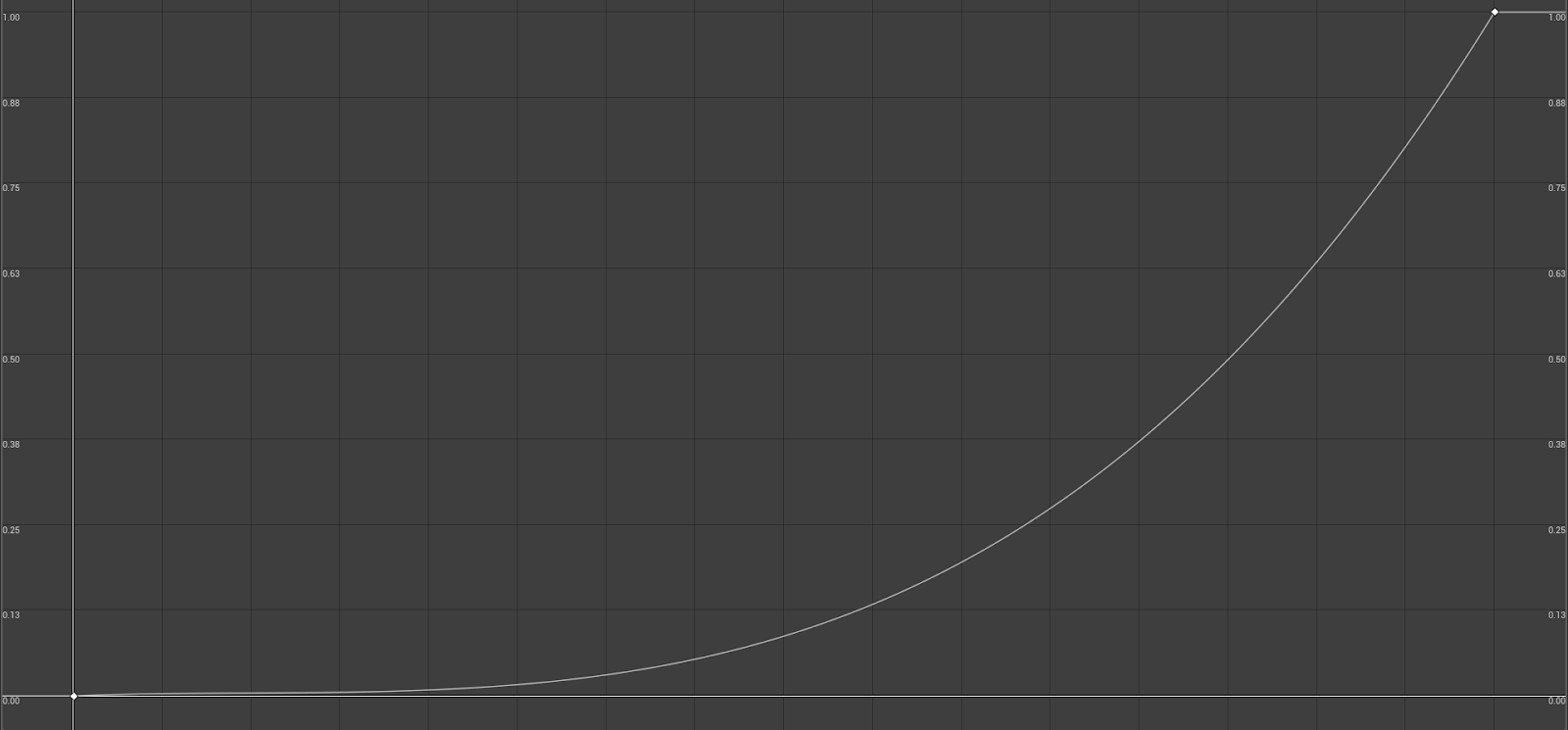
Using a Float Curve, we will drive the X axis, or Time axis with the float values coming from Faceware Live Server, and the corresponding value of the Y axis along our curve will be the value we use to drive our Morph Target:

Here you see that smile_L is driven directly from the Animation Value Left Mouth Smile. However this value is also driving the Time (x) axis of our Graph above. We drive the cheek_raise_L Morph Target with the corresponding value on the curve. This curve represents a slow ease into the Cheek Raise which activates faster as Smile increases.
Using the techniques outlined above, there are many secondary shapes that can be driven using the information we are getting from Live Server. A sneer shape can be triggered when the Mid Brow is down and the Mouth is up. We can activate the cheek suck shape when the OO shape is active and the mouth is down, or any other combination of shapes that will logically produce a new one.
That is the essence of Motion Logic, and by utilizing it correctly you may be able to bring your animation from Good to Great.