For all technical and account support regarding the Live Client for Unreal, please contact Glassbox: helpme@glassboxtech.com
Sequencer
In order to record your facial animation directly into Unreal Engine 4 (Versions 4.14 and greater) you’ll need to utilize Sequencer.
It is a good idea to have at least a basic knowledge of what sequencer is and what it is used for, and the best place to do that is with the official documentation, found here:
https://docs.unrealengine.com/latest/INT/Engine/Sequencer/index.html
Special attention should be paid to Sequence Recorder, which is our main focus:
https://docs.unrealengine.com/latest/INT/Engine/Sequencer/Workflow/SequenceRecorder/
Basic Recording
To record your animation values, make sure you’ve completed character setup, and you’re able to watch your character animate when pushing the Play button. If everything is ready to go, the next step is to tell Sequencer Recorder what to record.
Open Sequencer Recorder from the Window Menu:

Press the Add button at the top, and your window should look something like this:

You can name your sequence and adjust your settings here, but there are a few things that are necessary in order to capture the performance properly.
Under the Actor Filter category, add an array element if there isn’t one and make sure it’s pointing to the blueprint class that you want to record:

Next, under Classes and Properties to Record, add another element to the Array and point to the Faceware Live component:

And finally make sure your Blueprint Class is selected in the Actor Recording section:

You can record your animation to a sequence, but it’s also possible to record straight to the actor, rather than creating a copy. To do so, check the Rcord to Possessable in the Animation Recording section:
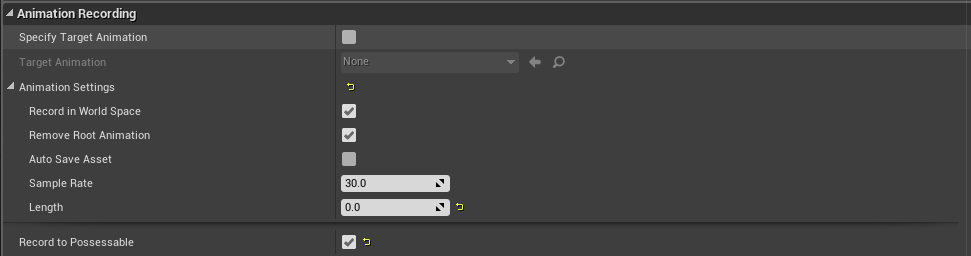
Once this basic setup is achieved make sure your scene is in Play mode (alt + P) then press the Record button:

You should see a countdown begin in your viewport:
.png?Policy=eyJTdGF0ZW1lbnQiOlt7IlJlc291cmNlIjoiaHR0cHM6Ly9kemY4dnF2MjRlcWhnLmNsb3VkZnJvbnQubmV0L3VzZXJmaWxlcy8zMDQ0LzQ2MTIvY2tmaW5kZXIvaW1hZ2VzL2ltYWdlKDM1KS5wbmciLCJDb25kaXRpb24iOnsiRGF0ZUxlc3NUaGFuIjp7IkFXUzpFcG9jaFRpbWUiOjE3OTE5NTczNDN9fX1dfQ__&Signature=FfZ99g6uEy2NUntl825fFvktSTWeenT4iWuzFPN9kxC8WsmpUCDIhaMMLusQZRKqkm3Z0Mlp8uWbkE~jJ181INs9BdoEveDbO-sQlERpQJW3aGZlsN-0xe7EnUtb4h6wuO8y3xuwFysFhoYNUe0TtAN-~ocHJ4MFlfY15AjiC1-diCOQhsAunJilMQnPTuAXo3n2r3SrjkL7m5itq2Uj5Am-gJCGcLTj5ti3sARjEDYgs04B55VcIujsVARKH0uFSONnGSfG60~4Q1fHuVmrgEgXENwDFVD~Shi9gh7Nyz-3ZZjaUnvBUQ1PNIPQZSmGtfTbmyzygwr09Oeq~YZGjQ__&Key-Pair-Id=K2TK3EG287XSFC)
Recording will commence and stop when you press stop or hit the escape key.
Find your Recorded Sequence in the Content/Cinematics/Sequences folder:

Double click the sequence to open up Sequencer, and use the Transport Controls that appear in your Viewport to Play your Sequence.
Note: Depending on the approach you’ve used to create your blueprint, you may need to play the scene first in order to view playback of your animation. See Epic’s Sequencer documentation in order to become more familiar with how to implement and work with your recorded sequences.